

Blog
Excel for Finance Professionals: Beginner to Advanced Skills

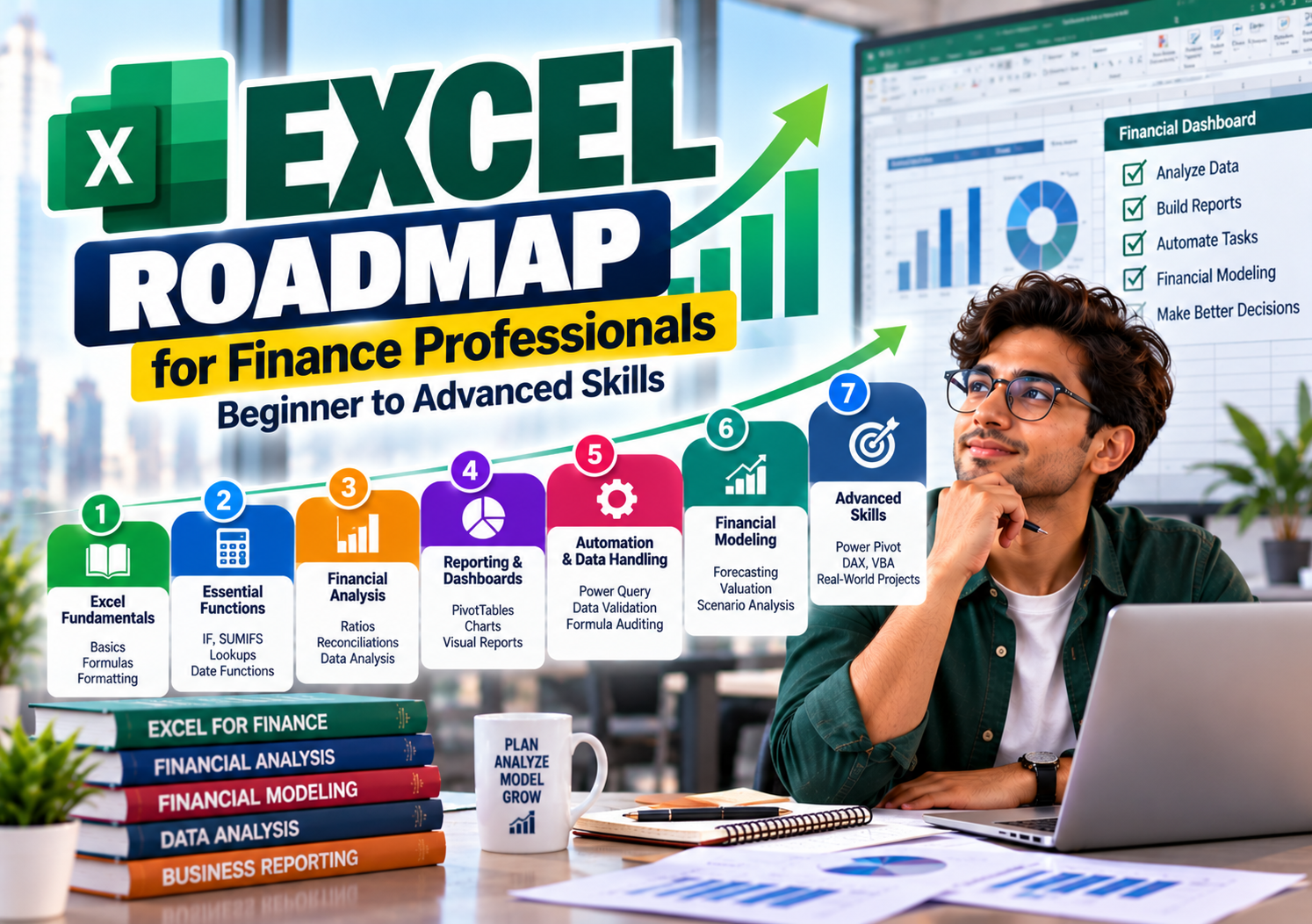
Excel is used across many finance roles, from accounting and financial reporting to budgeting, valuation, auditing, and investment analysis. But knowing basic formulas is only the starting point. Finance professionals need to work with financial data accurately, automate repetitive tasks, build forecasts, and explain what the numbers mean.
A good learning plan for Excel for finance professionals should follow a clear progression: spreadsheet fundamentals, essential formulas, financial analysis, reporting automation, and advanced modeling.
This roadmap is designed for CA, CMA and CS students, commerce graduates, MBA Finance students, accountants, auditors, financial analysts, and experienced professionals who want to improve their Excel skills. You can start from scratch or skip the basics you already know.
The Excel Roadmap for Finance Professionals
Excel skills are best learned in stages. Each stage should build on the previous one, with practical work rather than memorising formulas in isolation.
| Stage | Skills to learn | What you should be able to do |
|---|---|---|
| 1. Excel fundamentals | Cell references, formatting, tables and basic formulas | Organise financial data correctly |
| 2. Essential functions | IF, SUMIFS, COUNTIFS, IFERROR and lookups | Calculate and retrieve financial information |
| 3. Financial analysis | Ratios, variance analysis, reconciliations and ageing | Interpret business performance |
| 4. Reporting and dashboards | PivotTables, charts and conditional formatting | Prepare clear management reports |
| 5. Automation and data handling | Power Query, data validation and formula auditing | Reduce repetitive manual work |
| 6. Financial modeling | Forecasts, budgets, valuation and sensitivity analysis | Support financial decisions |
| 7. Advanced applications | Power Pivot, DAX, selected VBA or Python workflows | Handle more complex analytical tasks |
You do not need to master every advanced feature. The right depth depends on your job. An accountant preparing reconciliations has different needs from an investment banking analyst building valuation models.
Stage 1: Master the Excel Fundamentals
Before learning advanced formulas, make sure you can work comfortably with spreadsheets.
Learn how worksheets are structured
Understand cells, rows, columns, worksheets, workbooks, ranges, and Excel tables. Learn how to sort and filter data, freeze panes, manage multiple sheets, and apply consistent number formats.
Finance workbooks often contain dates, percentages, currencies, quantities, and large financial amounts. Incorrect formatting can make reports harder to read, while incorrect data types can cause formulas to return unexpected results.
Understand cell references
Cell references determine which values a formula uses.
- Relative reference:
A1changes when the formula is copied. - Absolute reference:
$A$1remains fixed when copied. - Mixed reference:
$A1orA$1fixes either the column or row.
Suppose you calculate monthly interest using a fixed annual interest rate stored in cell B2. An absolute reference can keep that rate fixed as you copy the formula across different months.
This may seem like a small detail, but reference errors can affect an entire financial model.
Learn basic formulas
Start with:
SUMto total valuesAVERAGEto calculate averagesMINandMAXto identify the smallest and largest valuesROUNDto control decimal precision- Basic arithmetic operators for additions, deductions, and percentages
Practise with an expense statement, sales report, or trial balance rather than a worksheet filled with unrelated sample numbers.
Your target: Create a well-structured spreadsheet with correct formulas, consistent formatting, and clear labels.
Stage 2: Learn the Excel Functions Used in Finance
Once you understand spreadsheet fundamentals, move to functions that help you calculate, classify, and retrieve financial data.
Logical and conditional functions
IF, AND, OR, and IFERROR help you build formulas that respond to conditions.
For example, an ageing report might classify an outstanding invoice as overdue when its due date is earlier than the reporting date.
SUMIF, SUMIFS, COUNTIF, and COUNTIFS let you calculate totals or counts based on specific conditions.
Imagine a company has thousands of expense transactions. You need to calculate travel expenses for a particular department during a particular month. SUMIFS can do this without manually filtering and adding each transaction.
Lookup functions
Lookup functions help retrieve information from another table or range.
| Function | Typical finance application |
|---|---|
XLOOKUP | Retrieve account names, invoice details or budget values |
INDEX and MATCH | Find information based on a matching identifier |
VLOOKUP | Retrieve data from a table when the lookup structure suits it |
XMATCH | Find the position of a matching item |
Learn XLOOKUP if your Excel version supports it. Also understand INDEX and MATCH, since you may encounter them in existing workbooks.
Text and date functions
Financial datasets often contain inconsistent descriptions, invoice references, or date fields.
Useful functions include:
LEFT,RIGHT,MIDandTRIMfor handling textTEXTfor displaying values in a specified formatDATE,YEAR,MONTHandEOMONTHfor working with reporting periodsTODAYfor date-based calculations
For example, EOMONTH can help determine a month-end reporting date or calculate the end of a period used in an ageing report.
Financial functions
Learn the purpose and limitations of:
NPVfor discounting a series of periodic cash flowsIRRfor estimating the return implied by periodic cash flowsXNPVandXIRRfor cash flows occurring on specific datesPMTfor calculating periodic loan payments under stated assumptions
These functions are useful in investment analysis, loan schedules, and valuation work. Pay attention to timing conventions, cash-flow signs, and the difference between periodic and date-specific calculations.
Your target: Use formulas to solve realistic finance problems without relying on manual calculations.
Stage 3: Apply Excel to Accounting and Financial Analysis
This is where Excel becomes a practical finance tool rather than just a spreadsheet application.
Reconciliation and transaction analysis
Accountants and finance teams often need to compare two sets of records and identify differences.
Excel can help with:
- Bank reconciliation
- Vendor and customer ledger reconciliation
- Invoice matching
- Trial balance reviews
- Duplicate transaction checks
- Expense classification
- Accounts receivable and payable ageing
Suppose the bank statement contains a payment of ₹48,500, but the accounting ledger records ₹45,800. A structured reconciliation workbook can flag the mismatch for review.
The spreadsheet identifies the difference. You still need to investigate whether it arose from a data-entry error, a missing transaction, a timing difference, or another cause.
Budget versus actual analysis
Finance teams compare actual performance against a budget to understand where results differ from expectations.
Consider this illustrative example:
| Expense category | Budget | Actual | Variance |
|---|---|---|---|
| Employee costs | ₹10,00,000 | ₹10,50,000 | ₹50,000 over budget |
| Marketing | ₹3,00,000 | ₹2,70,000 | ₹30,000 under budget |
| Travel | ₹1,00,000 | ₹1,25,000 | ₹25,000 over budget |
A useful report should do more than calculate variances. It should help the reader investigate the reasons behind them.
Higher employee costs might reflect additional hiring, overtime, or an incorrect forecast. Lower marketing expenses could reflect savings, delayed campaigns, or incomplete activity. The numbers need context before management decides what action to take.
Learn how to calculate both absolute and percentage variances, while handling cases where the budget is zero or negative.
Ratio and trend analysis
Excel can calculate financial ratios and compare them across months, quarters, or years.
Learn to analyse:
- Revenue growth
- Gross and operating profit margins
- Current and quick ratios
- Debt-to-equity
- Receivables and inventory turnover
- Operating expenses as a percentage of revenue
- Cash flow trends
The goal is to understand the movement behind the figures. A rising profit margin, for example, may reflect better pricing, lower input costs, or a change in the mix of products sold.
Your target: Prepare an analysis that explains what changed, how much it changed, and which areas need further investigation.
Stage 4: Create Reports and Dashboards
Finance professionals regularly turn detailed transaction data into reports for managers, clients, auditors, and business owners.
The ability to present the right information clearly can be just as useful as knowing the formulas.
Learn PivotTables and PivotCharts
PivotTables let you summarise large datasets without writing a separate formula for every category.
You can use them to analyse expenses by department, sales by region, receivables by customer, or revenue by month.
Learn how to group dates, filter records, arrange fields, refresh reports, and use slicers where appropriate.
For example, a finance manager could use a PivotTable to compare quarterly expenses across departments and quickly identify which categories account for most of the spending.
Use conditional formatting carefully
Conditional formatting can highlight overdue invoices, unusual values, negative balances, or material budget variances.
Use it to direct attention to items that need review. If too many colours are applied, the report becomes harder to interpret.
Build a finance dashboard
A useful dashboard answers specific management questions rather than displaying every available metric.
Depending on the business, it might show:
- Revenue and profit trends
- Budget versus actual performance
- Cash balances and working capital
- Overdue receivables
- Expense trends
- Key financial ratios
Keep the layout simple. Use clear labels, consistent units, and appropriate chart types. Make sure the underlying data is accurate and the report can be refreshed reliably.
Your target: Turn a large dataset into a report that helps someone make a decision without reading every row.
Stage 5: Automate Repetitive Finance Tasks
Many finance teams spend time collecting files, cleaning data, combining reports, and repeating the same monthly calculations.
Excel offers tools that can reduce this manual effort.
Power Query
Power Query helps import, clean, transform, and combine data from sources such as spreadsheets, text files, and supported databases.
Imagine receiving separate monthly sales files from ten branches. You could manually copy the data into a master workbook every month, or create a Power Query process that combines files with a consistent structure.
Once configured, the process can often be refreshed when new files arrive.
Learn how to:
- Import and combine files
- Remove unwanted rows and columns
- Change data types
- Split and merge columns
- Remove duplicates
- Merge tables using matching keys
- Append data from multiple periods
- Refresh the finished query
Power Query does not eliminate the need to check the output. Changes in source-file structure, missing fields, and inconsistent data can still cause problems.
Data validation and formula auditing
Use data validation to restrict inputs where appropriate, such as department codes, reporting periods, or scenario selections.
Learn formula auditing tools to trace precedents and dependents, identify broken references, and investigate errors.
In finance, a workbook should be easy to check. A formula that works today but cannot be reviewed or maintained is a poor long-term solution.
VBA and macros
Visual Basic for Applications (VBA) can automate tasks that require repeated actions or custom spreadsheet behaviour.
It may be useful for existing legacy workbooks, recurring reports, or processes that cannot be handled efficiently with built-in tools. However, not every finance professional needs to learn VBA immediately.
Start with Excel’s built-in features and Power Query. Learn VBA when you have a clear task that benefits from it.
Your target: Reduce avoidable manual work while keeping the process transparent and easy to verify.
Stage 6: Use Excel for Financial Modeling and Forecasting
Financial modeling requires more than spreadsheet knowledge. You need to understand accounting, business drivers, and the relationships between financial statements.
Excel provides the calculations, but your assumptions and model structure determine whether the result is useful.
Build budgets and forecasts
Learn how to forecast revenue, operating costs, working capital, capital expenditure, debt, and cash flow.
For example, a company might forecast sales using expected units sold and average selling price. Employee costs may depend on headcount and average compensation, while rent may follow contract terms rather than sales growth.
The model should reflect how the business actually operates.
Learn integrated three-statement modeling
A three-statement model connects the income statement, balance sheet, and cash flow statement.
You should understand how depreciation affects profit and asset values, how working capital changes affect cash flow, and how debt repayments influence cash balances and future interest expense.
The model should reconcile correctly. A forecast is not reliable simply because it produces a complete-looking spreadsheet.
Learn valuation and sensitivity analysis
For roles involving investment analysis or corporate finance, learn:
- Discounted cash flow (DCF) valuation
- Comparable company analysis
- Revenue and margin forecasting
- Scenario analysis
- Sensitivity tables
- Investment return calculations
Sensitivity analysis shows how a valuation or forecast changes when key assumptions move. This helps decision-makers understand the range of possible outcomes rather than treating one estimate as certain.
Your target: Build a model that can be reviewed, explained, and updated when business assumptions change.
Stage 7: Explore Advanced Excel and Data Analysis
Advanced tools become valuable when the work requires larger datasets, more complex calculations, or repeatable reporting across multiple sources.
| Tool or skill | What it adds | Best suited for |
|---|---|---|
| Power Pivot | Relationships between tables and data models | Finance teams working with larger datasets |
| DAX | Calculations within Power Pivot and Power BI data models | Analytical reporting |
| Dynamic array functions | Formulas that return multiple results | Modern Excel reporting and analysis |
| VBA | Custom macros and workflow automation | Repetitive or specialised spreadsheet tasks |
| SQL | Data retrieval from relational databases | Finance and business data analysis |
| Python | Automation and advanced data analysis | Roles with suitable technical requirements |
You do not need to learn these tools in a fixed sequence. Power Pivot and DAX may be useful for dashboard-heavy roles, while SQL may be more valuable when financial data sits in databases. Python can help with specialised analysis and automation, but it is not a substitute for understanding finance.
Excel remains useful even when other tools are available. The important skill is knowing which tool solves the problem most reliably.
A Practical 12-Week Learning Plan
If you are unsure where to begin, use this illustrative plan. Adjust the pace based on your existing knowledge and available study time.
| Weeks | Focus | Practical milestone |
|---|---|---|
| 1–2 | Excel fundamentals and basic formulas | Build an expense tracker |
| 3–4 | Logical, conditional, lookup and date functions | Create an invoice or ledger analysis |
| 5–6 | Reconciliation and financial analysis | Prepare a budget-versus-actual report |
| 7–8 | PivotTables, charts and dashboards | Build a management dashboard |
| 9–10 | Power Query and reporting automation | Combine multiple source files |
| 11–12 | Forecasting and introductory financial modeling | Build a simple financial forecast |
This plan provides a foundation, not mastery of every advanced skill. Integrated three-statement modeling, complex valuation, and specialised automation may require additional practice.
Try to work with complete tasks. For example, build a monthly expense report from raw transactions, calculate variances, summarise the results, and prepare a short explanation of the main findings. That is closer to real finance work than practising isolated formulas indefinitely.
Which Excel Skills Matter Most for Different Finance Careers?
The most useful Excel skills depend on the role you want.
| Career or work area | Prioritise these skills |
|---|---|
| Accounting | Reconciliations, lookups, conditional formulas, ageing reports |
| Auditing | Data filtering, sampling support, formula checks and analytical procedures |
| Taxation | Data organisation, reconciliations, calculations and structured reporting |
| FP&A | Budgeting, forecasting, variance analysis and dashboards |
| Corporate finance | Cash flow forecasting, financial modeling and scenario analysis |
| Equity research | Financial statement analysis, valuation and sensitivity analysis |
| Investment banking | Advanced modeling, valuation, transaction analysis and model presentation |
| Management reporting | PivotTables, Power Query, charts and repeatable reporting |
CA, CMA and CS students may use Excel in different ways depending on their training and intended roles. Commerce graduates and MBA Finance students can also benefit from building practical spreadsheet skills alongside their academic knowledge.
Do not choose advanced Excel topics simply because they sound impressive. Start with the tasks that are common in your target role, then expand your skill set.
Common Excel Mistakes Finance Professionals Should Avoid
Using formulas without checking the source data
A formula can calculate correctly from incorrect inputs. Check for duplicate records, missing transactions, inconsistent dates, and numbers stored as text.
Hardcoding numbers into formulas
If an assumption changes, a hardcoded formula may not update correctly. Keep key assumptions in clearly labelled cells and reference them consistently.
Ignoring formula errors
Errors such as #N/A, #VALUE!, and #REF! should be investigated. Avoid using IFERROR to hide every problem without understanding its cause.
Building reports that are difficult to refresh
Manual copy-and-paste processes can introduce errors and waste time. Where possible, use structured tables, formulas, and Power Query to make recurring reports easier to update.
Making dashboards too complicated
More charts do not necessarily make a report better. Choose a few meaningful metrics and make their labels, periods, and units clear.
Learning tools without applying them
Watching tutorials may help you recognise a feature, but practical use builds competence. Create workbooks that resemble actual accounting, reporting, and analysis tasks.
How to Measure Your Progress?
You are making progress when you can complete useful work without following a tutorial for every step.
Check whether you can:
- Clean and organise a financial dataset.
- Use formulas to retrieve and calculate financial information.
- Reconcile two sets of records and investigate differences.
- Prepare a budget-versus-actual analysis.
- Build a PivotTable-based report.
- Automate a recurring data-cleaning task.
- Create a basic forecast using stated assumptions.
- Review your formulas and explain how the workbook works.
For a portfolio, keep a few sample workbooks using fictional or appropriately anonymised data. Include a reconciliation report, a management dashboard, and a financial forecast. Document the assumptions and checks behind each file.
These examples can help you discuss your skills in interviews, but they do not guarantee employment. Employers may also assess accounting knowledge, communication, attention to detail, and your ability to interpret results.
Build Excel Skills Alongside Your Finance Knowledge
Excel is most valuable when it helps you solve a finance problem accurately. Start with formulas and data handling, apply them to accounting and financial analysis, and then move into automation and modeling based on your career goals.
For students preparing for professional qualifications, a strong understanding of accounting, costing, and financial statements provides the foundation for using Excel effectively. Master Minds India offers commerce and professional-course learning pathways for students exploring CA, CMA, and other commerce-related education.
Visit the Master Minds India homepage to learn about the institute, or explore the courses page to review available programmes.
The best way to improve is to build something useful, check that it works, and be able to explain what the results mean. That is the difference between knowing Excel functions and using Excel effectively in finance.
